
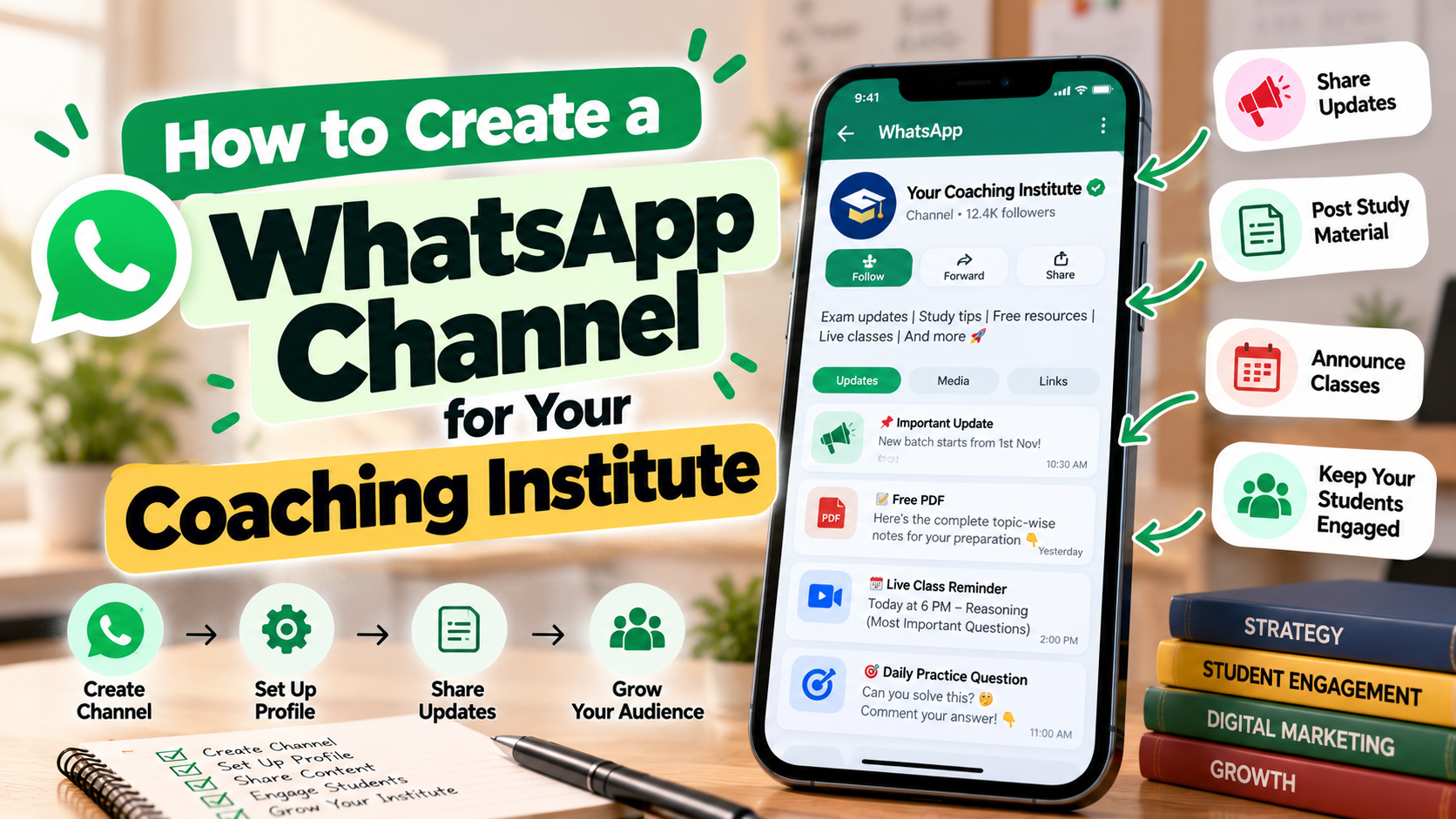
Almost every coaching institute already has a WhatsApp group, and almost every group has the same problem. Announcements get buried under "good morning" forwards, students leave, and parents mute the chat. A WhatsApp channel solves part of this. It is a one-way broadcast: you post, followers read, and nobody can flood the feed.
This guide explains how to create a WhatsApp channel, how it differs from a group, what to post for students and parents, and how to grow your followers without annoying anyone. Menus and features change from time to time, so treat the steps as a guide and check what your own app shows.
What a WhatsApp channel is
WhatsApp Channels are a broadcast feature. Followers find them in the Updates tab, separate from their chats. The people who run a channel are called admins. Followers can read posts and react, but they do not post themselves.
Two points matter to institutes. First, followers do not see each other's phone numbers, and following a channel does not reveal a follower's number to the admin. Second, updates are not kept forever. WhatsApp stores channel history on its servers for a limited period, which is around 30 days, so important material should also live somewhere permanent.
Channel vs group: which one do you need?
| WhatsApp group | WhatsApp channel |
Who can post | Any member, unless limited | Only admins |
Privacy of numbers | Members can see each other's numbers | Followers' numbers stay private |
Best for | Discussion and doubts | Announcements and updates |
Size | Limited | Built for large audiences |
Risk | Spam and off-topic chat | Low, since only admins post |
Replies | Anyone can reply | Followers can react, not chat |
Many institutes use both: a channel for official notices and a group for each batch to ask doubts.
Who can create a channel
Anyone using WhatsApp can create a channel in countries where the feature is available, and it has been available in India since 2023. If you run your institute on a business account, the business app also has the option. Update your app to the latest version first, because older versions may not show it.
How to create a WhatsApp channel, step by step
1. Update WhatsApp. Install the latest version from your app store.
2. Open the Updates tab. On most phones this is at the bottom of the screen.
3. Tap the plus icon. Then choose "New channel" or "Create channel."
4. Follow the prompts. WhatsApp may ask you to continue and read a short introduction.
5. Name your channel. Use your institute name, perhaps with the exam, for example "Institute Name SSC Updates." Pick a name students can recognise.
6. Add a description. One or two lines on what you will post and how often.
7. Add an icon. Use your logo so the channel looks official.
8. Tap "Create channel." Your channel is live.
After creating it, open the channel settings to choose whether it appears in the public directory, whether followers can forward posts, and whether you want to limit screenshots. Add other teachers as admins if you want shared posting.
What to post
A channel works when followers know what to expect. Decide a few regular types of post.
Post type | Example | How often |
Schedule | "Tomorrow's class timings" | Daily or weekly |
Test notice | "Free mock test on Sunday at 10 am, link below" | Weekly |
Result update | "Results of Saturday's test are out" | After each test |
Study tip | "Three ways to improve reasoning speed" | Twice a week |
Current affairs | "Five key points from today's news" | Daily |
Notices | Holidays, fee dates, demo classes | As needed |
Motivation | A short, genuine note before an exam | Occasionally |
Keep posts short and scannable. Put the key detail in the first line. Avoid long essays.
How to grow your followers
A channel with no followers is a notice board in an empty room. These steps help.
9. Share the link with current students. Announce it in your class and your batch groups.
10. Put it on your board and posters. A QR code works well.
11. Add it to your social pages. Link it from Instagram and your Google profile.
12. Give a reason to follow. Post something valuable, such as free tests or daily practice questions, that appears only there.
13. Ask parents. A separate channel for parents with fee dates and results keeps them informed.
14. Ask followers to share. A simple "forward this to a friend who is preparing" can help.
Read coaching advertisement ideas for more ways to announce your channel.
Rules for using a channel well
• Post at predictable times. Followers prefer routine.
• Do not post too often. Two or three useful posts a day beat ten forwards.
• Do not mix topics. Keep official updates separate from jokes and greetings.
• Do not claim results you cannot prove. Honest messaging builds trust.
• Keep a permanent copy. Save important schedules and files elsewhere, since the channel keeps history only for a limited time.
• Respect privacy. Do not share student names or marks without permission.
Mistakes to avoid
• Creating several channels with overlapping topics.
• Forgetting to add a second admin, so the channel stops when you are busy.
• Using the channel to sell aggressively every day.
• Posting long files that students cannot read on a phone.
• Never asking followers what they want to see.
After the channel
A channel keeps your students informed. What improves their results is practice. Institutes that run weekly tests give students something real to look forward to in every post. If you want to publish tests and reach new students nationwide, see the coaching institutes page. If your institute is still looking for a name, browse coaching name ideas.
FAQs
How do I create a WhatsApp channel?
Update WhatsApp, open the Updates tab, tap the plus icon, choose New channel, add a name, description and icon, then tap Create channel.
Who can create a WhatsApp channel?
Anyone using WhatsApp can, in countries where the feature is available. It has been available in India since 2023.
Is a channel better than a group for a coaching institute?
For announcements, yes. A channel stops spam and keeps numbers private. Groups are better for discussion, so many institutes use both.
Can followers see my phone number?
Admins' phone numbers are not shown to followers, and followers' numbers are not visible to others.
How long do channel updates stay available?
WhatsApp keeps channel history for a limited time, around 30 days, so keep important material elsewhere too.
Can I add other teachers to the channel?
Yes. You can add other admins so several people can post.
Comments (0)
Please log in to join the discussion.
Log In to CommentNo comments yet. Be the first to share your thoughts!