
What you will learn in this guide. This guide covers what to do after your course is already live, how to update its details, temporarily take it offline, or remove it permanently. If you haven't created a course yet, this isn't the right starting point for you to head to How to Create and Publish a Course first, then come back here once you're managing an existing one.
Who this is for. Any teacher who already has a course published or in draft sitting in their Courses section and needs to make a change to it.
In this article:
Update Course
Unpublished Course
Delete Course
Frequently Asked Questions
Introduction
Imagine you published a chemistry course a few months ago, and now you need to make a few changes. Maybe a student noticed a typo in the course description, your syllabus has changed and an entire section needs updating, or you're taking a short break and want to temporarily stop new students from enrolling. Perhaps you created a test course while exploring the platform and no longer need it.
Whatever the reason, Testkart gives you the flexibility to update, unpublished, or delete your course based on what you need.
Here's exactly how each one works.
Edit Course
Use this when your course is live (or in draft) and you just need to change something: the title, description, price, thumbnail, or curriculum.
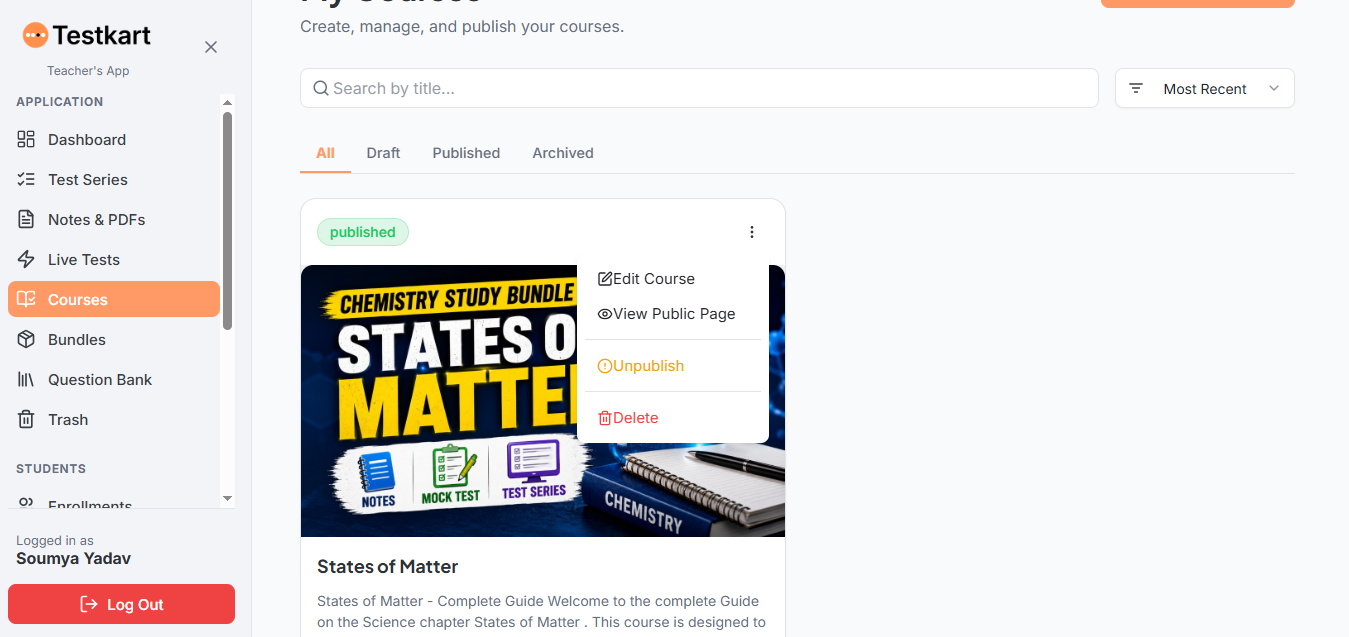
Go to Courses in the sidebar.
Find your course and click the three-dot menu on its card.
Click Edit Course.
This opens the same 3-step editor used when the course was created: Basic Info, Curriculum, and Review & Publish. Update whatever needs changing (title, description, category, difficulty level, language, exam tag, price, thumbnail, or intro video).
Click Save Changes.
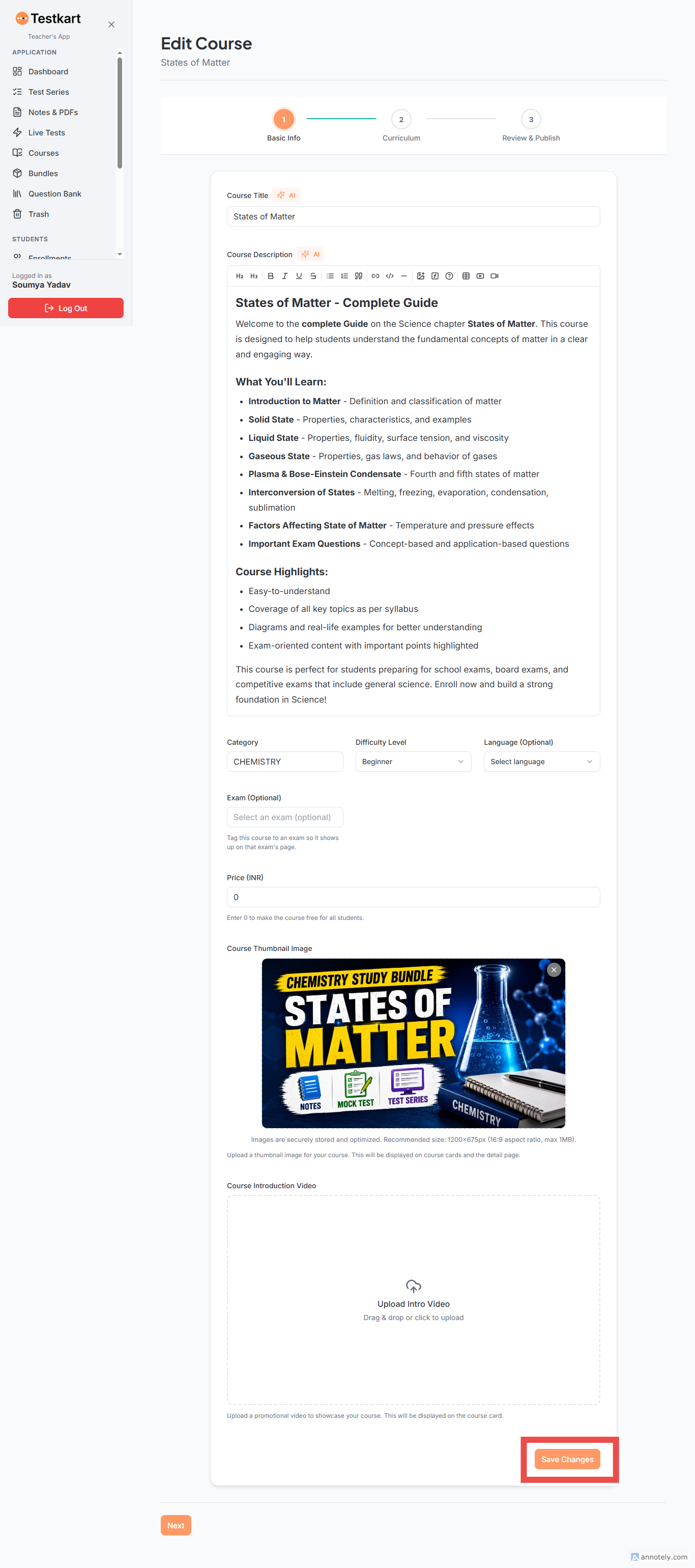
Your updates apply immediately no need to unpublished the course first.
Unpublished Course
Use this when you want to temporarily take a course off the platform without deleting it, for example, pausing new enrollments while you rework the content.
Go to Courses in the sidebar.
Click the three-dot menu on your course card.
Click Unpublish.
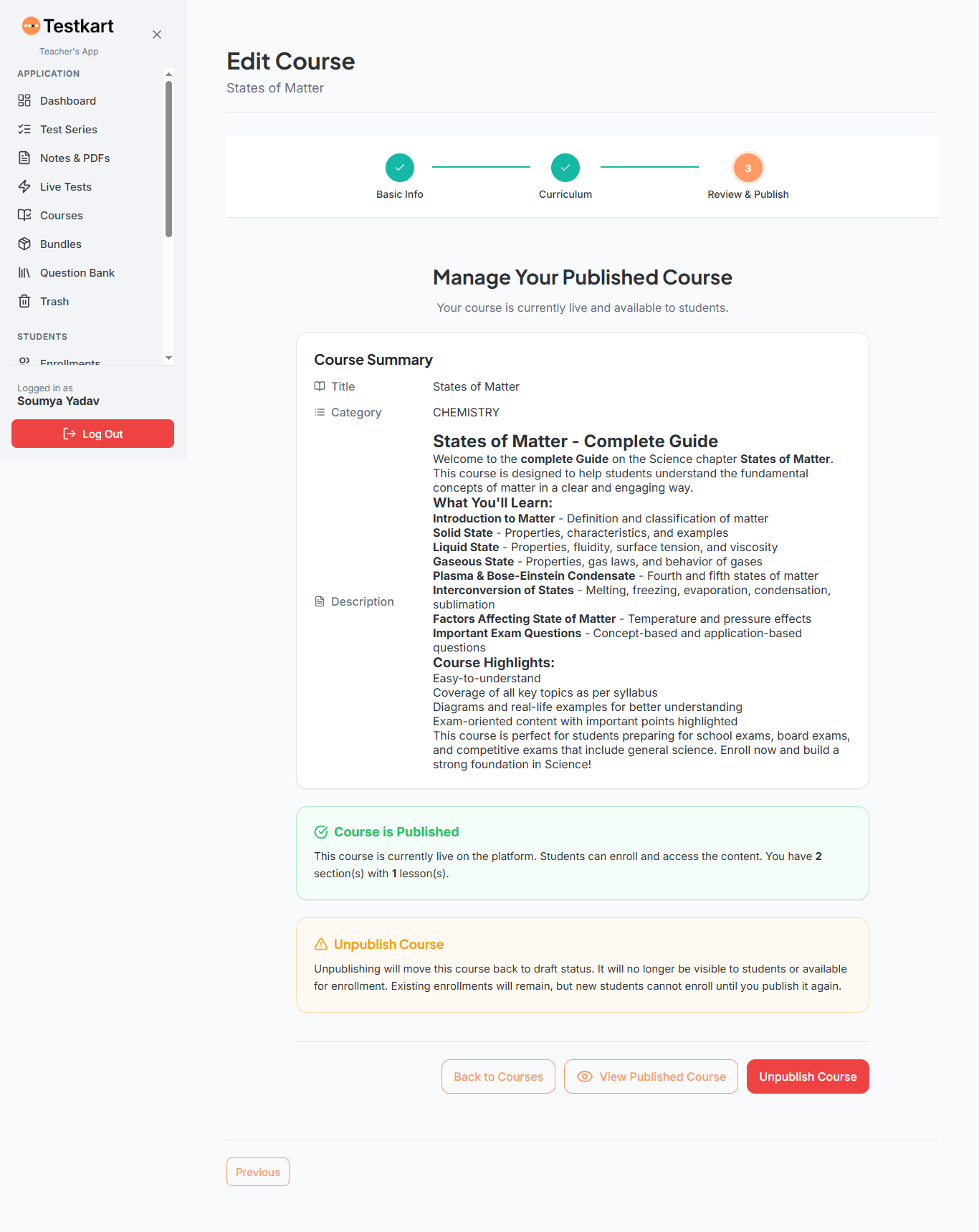
This takes you to the Review & Publish step, showing a "Course is Published" summary and an Unpublish Course warning box explaining what will happen: your course moves back to draft status, it's no longer visible to students or open for new enrollment, but students already enrolled keep their access.
Review this information, then click Unpublished Course to confirm.
Make the required changes and click Save Changes.
You can publish it again anytime once you're ready.
Delete Course
Use this only when you want the course gone for good; this isn't the same as unpublishing.
Go to Courses in the sidebar.
Click the three-dot menu on your course card.
Click Delete.
Confirm the deletion when prompted.
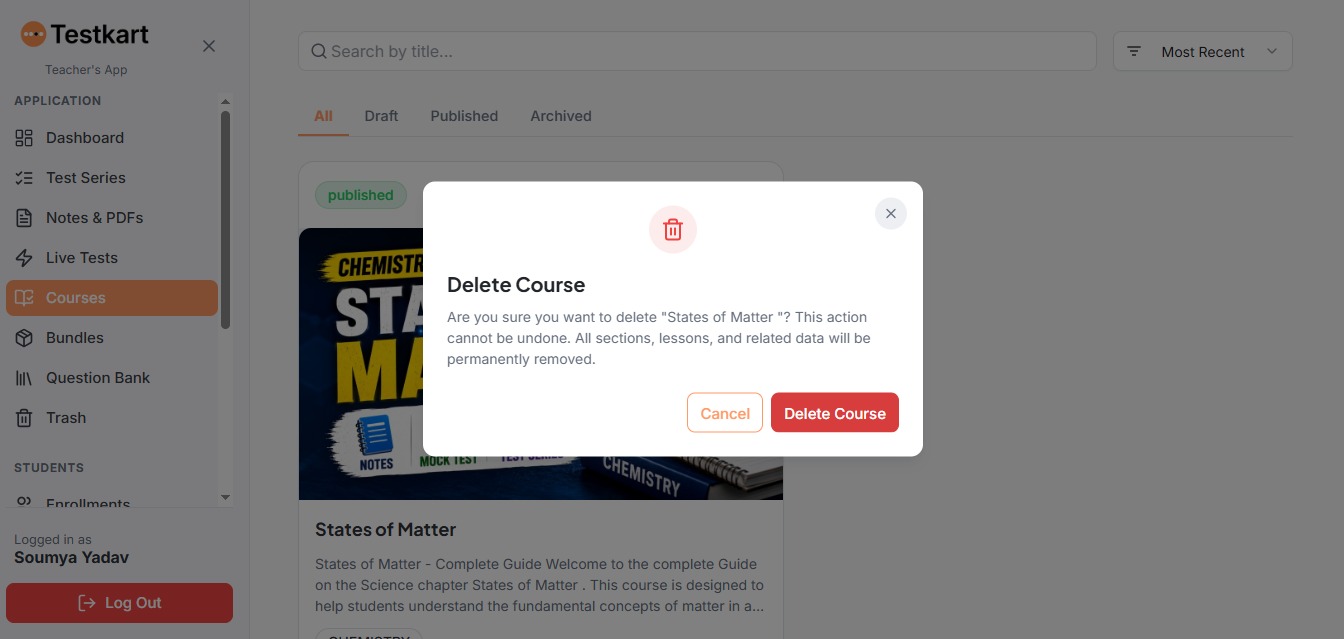
Since this action is permanent, make sure you actually want the course removed rather than just paused if you're unsure, Unpublish is the safer, reversible option.
Frequently Asked Questions
If I edit my course, will students who already enrolled lose access or see it change?
No. Editing and saving changes applies to your course right away, and enrolled students keep their access throughout. You don't need to unpublish first just to make an update.
Do I need to unpublish my course before I edit it?
No. You can go straight to the Edit Course and save your changes while the course stays live the whole time.
If I unpublish my course, do I lose my already-enrolled students?
No. Unpublishing only stops new students from enrolling students who already had access to it. It just moves the course back to draft status until you publish it again.
Can I republish a course after unpublishing it?
Yes. Unpublishing isn't permanent you can publish it again whenever you're ready, using the same Courses menu.
What's the actual difference between unpublishing and deleting a course?
Unpublishing is temporary and reversible; your course and its data stay intact, just hidden from new students. Deleting is permanent and removes the course entirely, so only use Delete if you're sure you don't want it back.
I made a course by mistake while testing the platform. Should I unpublish or delete it?
Delete is the right choice here, since there's nothing you'd want to keep or republish later. Unpublish is better reserved for real courses you're only pausing temporarily.
Will I lose my course content if I delete it?
Yes — deleting is permanent, so make sure you're not planning to reuse that content before confirming.
For More Information
If you're setting up a brand-new course rather than managing an existing one, visit the Testkart.